
p5.js is an open-source JavaScript library for creative coding that runs entirely in the browser — no installation required. This guide takes you from opening the online editor to building your first generative system: shapes, colour, randomness, and animation. Each section includes working code you can copy directly into the editor and run.
What Is p5.js and Why Use It for Generative Art
p5.js is a JavaScript reinterpretation of Processing, the creative programming environment created in 2001 by Casey Reas and Ben Fry at MIT Media Lab. In 2013, artist and UCLA educator Lauren Lee McCarthy developed p5.js to bring Processing’s principles to the web browser, making them accessible without environment setup or installation.
Four concrete reasons to choose it as a first generative art environment:
- No installation: the official editor runs in the browser at editor.p5js.org. Code runs and the result appears immediately.
- Low entry, high ceiling: a basic sketch fits in 10 lines; the same concepts scale to complex interactive installations. Tyler Hobbs built his Fidenza series — one of the most recognised bodies of work in generative art — using Processing-derived tooling.
- Large documented community: the p5.js reference is thorough, and The Coding Train (Daniel Shiffman’s YouTube channel) provides hundreds of free tutorial videos covering everything from basic shapes to machine learning integrations.
- Version 2.0 available since 2025: p5.js 2.0 — released in April 2025 — adds full support for variable fonts, JavaScript shaders, new colour spaces (LAB, OKLab), and a unified pointer event system. Version 1.x remains fully supported and is what most existing tutorials use; 2.0 becomes the default in the online editor in August 2026.
Setting Up: Online Editor vs. Local Environment
For beginners, the online editor is the fastest path. For larger projects or offline work, a local setup is preferable.
Online editor (recommended for beginners):
- Go to editor.p5js.org.
- Create a free account to save sketches.
- The editor has two panels: code on the left, visual result on the right. The Play button runs the sketch.
- The console at the bottom shows errors and
console.log()output.
Local environment:
- Install VS Code and the Live Server extension.
- Download p5.js from p5js.org/download or use the CDN in your HTML:
<script src="https://cdnjs.cloudflare.com/ajax/libs/p5.js/1.11.3/p5.min.js"></script> - Create an
index.htmlthat loads the library and asketch.jsfile for your code. - Open with Live Server to see changes live.
The practical difference: the online editor is faster for exploration; the local setup handles external files (images, audio, fonts) and multi-file projects.
Your First Sketch: Shapes, Colour, and the Canvas
Every p5.js sketch has two core functions: setup(), which runs once on load, and draw(), which runs in a loop. A minimal working sketch:
function setup() {
  createCanvas(600, 400);
  background(20);
}

function draw() {
  fill(255, 100, 50);
  noStroke();
  ellipse(300, 200, 80, 80);
}
This creates a 600×400 canvas, a near-black background, and draws an orange circle in the centre. Concepts introduced:
createCanvas(width, height)— sets the drawing area dimensions.background(value)— paints the background. A single number is greyscale (0–255); three values are RGB.fill(r, g, b)— sets the fill colour for subsequent shapes.noStroke()— removes the outline from shapes.ellipse(x, y, w, h)— draws an ellipse centred at (x, y). With equal width and height, the result is a circle.
Other basic shape functions: rect(x, y, w, h) for rectangles, line(x1, y1, x2, y2) for lines, triangle(x1, y1, x2, y2, x3, y3) for triangles. The coordinate system places the origin (0,0) at the top-left corner, with x increasing rightward and y increasing downward — the opposite of standard Cartesian geometry.
Adding Motion: Animation Basics
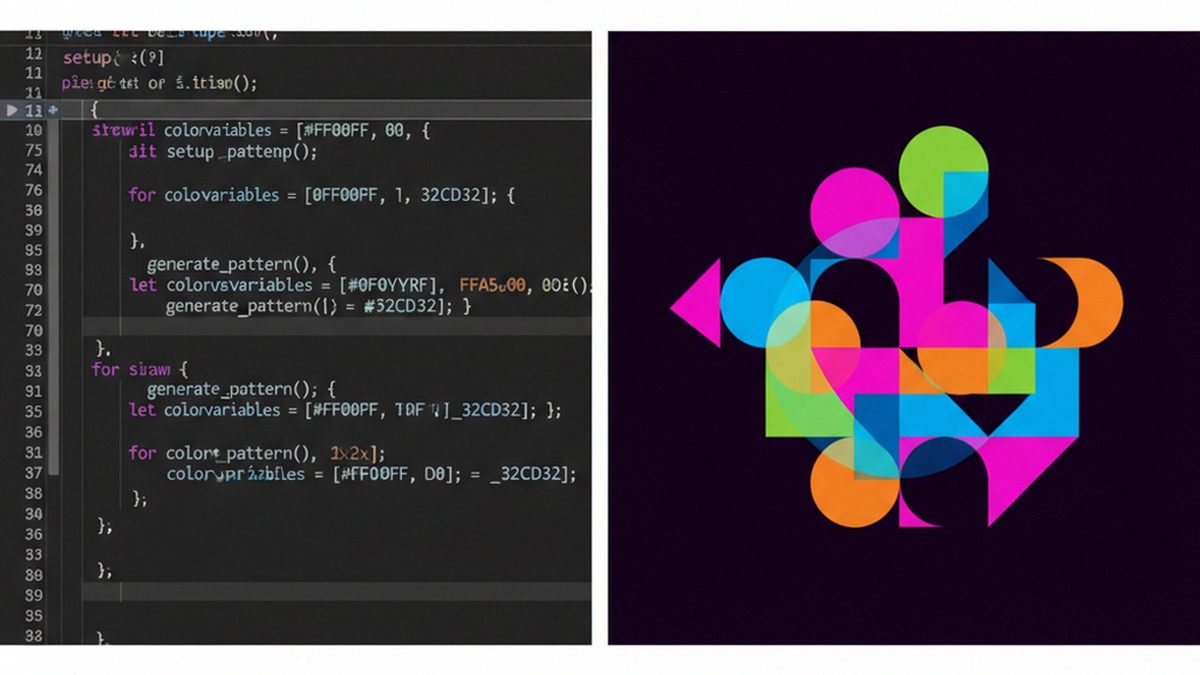
draw() runs at 60 frames per second by default. Any variable that changes over time becomes an animation. The most direct pattern uses the built-in variable frameCount — which increments by 1 each frame — as the engine of change:
function setup() {
  createCanvas(600, 400);
}

function draw() {
  background(20, 20, 30);
  let x = (frameCount * 2) % width;
  fill(100, 200, 255);
  noStroke();
  ellipse(x, height / 2, 40, 40);
}
The circle moves left to right and wraps back to the start when it reaches the edge. The % (modulo) operator is essential in generative art for creating cycles and keeping values within the visible range.
The built-in variables mouseX and mouseY return the cursor position in real time. Replacing the fixed coordinates with mouseX, mouseY turns the sketch into an interactive drawing tool in two words.
To control animation speed: frameRate(24) in setup() reduces frames per second, producing a more cinematic or deliberate feel. Calling frameRate() without an argument returns the current fps — useful for performance diagnostics.
Randomness: The Core of Generative Art
The difference between an animated sketch and generative art in the strict sense is usually randomness: the system’s capacity to produce different results each run without the artist specifying every detail. The central function is random():
random(max)— returns a decimal number between 0 and max.random(min, max)— returns a number between min and max.random(array)— returns a random element from the array.
A simple generative system — 100 circles with random position, size, and opacity, regenerated each run:
function setup() {
  createCanvas(800, 600);
  background(10);
  noLoop();

  for (let i = 0; i < 100; i++) {
    let x = random(width);
    let y = random(height);
    let d = random(5, 60);
    let alpha = random(80, 255);
    fill(180, 100, random(200, 255), alpha);
    noStroke();
    ellipse(x, y, d, d);
  }
}
noLoop() in setup() stops the draw loop — the result is generated once. This is the base pattern for static generative art: a different composition each time the sketch opens.
For repeatable compositions, randomSeed(number) fixes the pseudorandom number generator’s seed. The same seed always produces the same composition — a mechanism fundamental to edited generative series, as used by artists like Tyler Hobbs and Vera Molnár in their digital processes.
Colour Systems in p5.js
By default, p5.js uses RGB values (0–255 per channel). Two alternative colour modes are particularly useful for generative work:
- HSB (Hue, Saturation, Brightness): activate with
colorMode(HSB). Hue runs from 0 to 360, saturation and brightness from 0 to 100. Rotating hue with a loop or animation produces smooth, harmonious colour progressions — much easier than trying to calculate equivalent RGB steps manually. - OKLab (p5.js 2.0): a perceptually uniform colour space where equal numerical steps produce visually equal changes in perceived colour. Available in p5.js 2.0 as
colorMode(OKLAB). Useful for gradients and palettes where you want colour transitions to feel consistent to the human eye.
Exporting Your Work
Three main export approaches:
- Save as image: call
saveCanvas('filename', 'png')anywhere in your sketch — for example, on a mouse click or keypress. This downloads the current canvas as a PNG. - Save as SVG: the p5.js SVG library replaces the canvas renderer with an SVG one, allowing vector export of any sketch that uses basic shape functions.
- Record as video: the
saveFrames()function exports a sequence of frames as images, which you can combine into video with FFmpeg or any video editor. For web-based recording, the CCapture.js library integrates directly with p5.js.
Next Steps and Resources
- p5.js Reference — complete function documentation
- p5.js Online Editor — start coding immediately, no install needed
- The Coding Train — Daniel Shiffman’s video tutorials, the most comprehensive free resource for learning p5.js
- How to Use Suno AI to Create Music — Amplify DAI
- What Is Experimental Music with Artificial Intelligence — Amplify DAI
- All resources — Amplify DAI